

Overview
Subscription Force is a Powerful self-service interface that goes on top of WooCommerce Subscriptions which allows your customers to manage their subscriptions, so in return, you’ll get fewer Support Tickets.
With Subscription Force, you can:
- Allow your customers to change/update their subscriptions on their account page
- Change product quantities.
- Switch between product variations.
- Add a new product to an active subscription.
- Add a new product to an active subscription for the next shipment only.
- Change the next payment date for the subscription.
- Change the subscription frequency.
- Pause the subscription until a specific date
- Allow your customers to purchase a simple or variable product as a one-time buy or on a subscription basis.
- Configure subscription frequencies for simple and variable products.
- Set discounts for each subscription frequency created
- Configure a free shipping progress bar and display it on various pages
Plugin requirements
Subscription Force requires:
- WooCommerce Subscriptions 4.0.0+.
- WooCommerce 7.0.0+.
The Subscription Force plugin only supports HTTPS websites and will not work on HTTP websites.
Instalation
As with any WordPress plugin, Subscription Force can be installed on the website in 2 ways:
- Installing Subscription Force directly from your website:
- Download the .zip file from your Freemius account.
- Go to: WordPress Admin > Plugins > Add New and Upload Plugin with the file you downloaded with Choose File.
- Install Now and Activate the extension.
- Installing Subscription Force using FTP
- Extract the WordPress plugin ZIP file to a folder on your computer.
- Upload the plugin folder to your FTP server. The folder should be copied to the following WordPress folder wp-content –> plugins. If you are upgrading an existing plugin, please make sure to overwrite the existing plugin folder.
- Activate the plugin by logging into your WordPress backend. Go to Plugins –> Installed Plugins, find the plugin from the list and click ‘Activate’.
Plugin Features
Changing/updating a subscription by the customer
Setup and configuration
Plugin functionalities can be enabled or disabled from the back-end by the administrator. To do this, go to WooCommerce – Settings – Self-Service Dash tab and here you can enable/disable the following options:
- Allow the next payment date to change
- Allow subscription frequency change
- Allow shipping method change
- Allow shipping method update
- Allow subscription pause
- Allow adding a new product
- Allow item removal
- Allow Quantity change
- Allow Item Switching
- Define subscription frequencies for the change subscription frequency option
Once you’ve selected the options you want to use on your website click Save changes
In order to change/update a subscription, customers will need to go to My Account – Subscriptions and open/view the subscription they want to change. From the subscription page they can take the following options:
Change the product quantity
In order to change the quantity of a product, users need to:
- Go to My Account – Subscriptions – view subscription
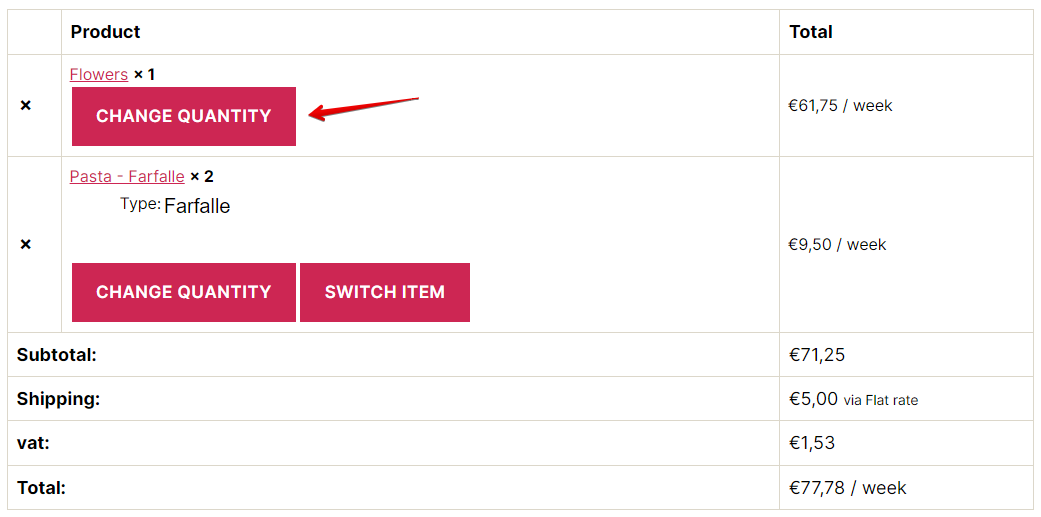
- Press the [Change quantity] button, under the product title.
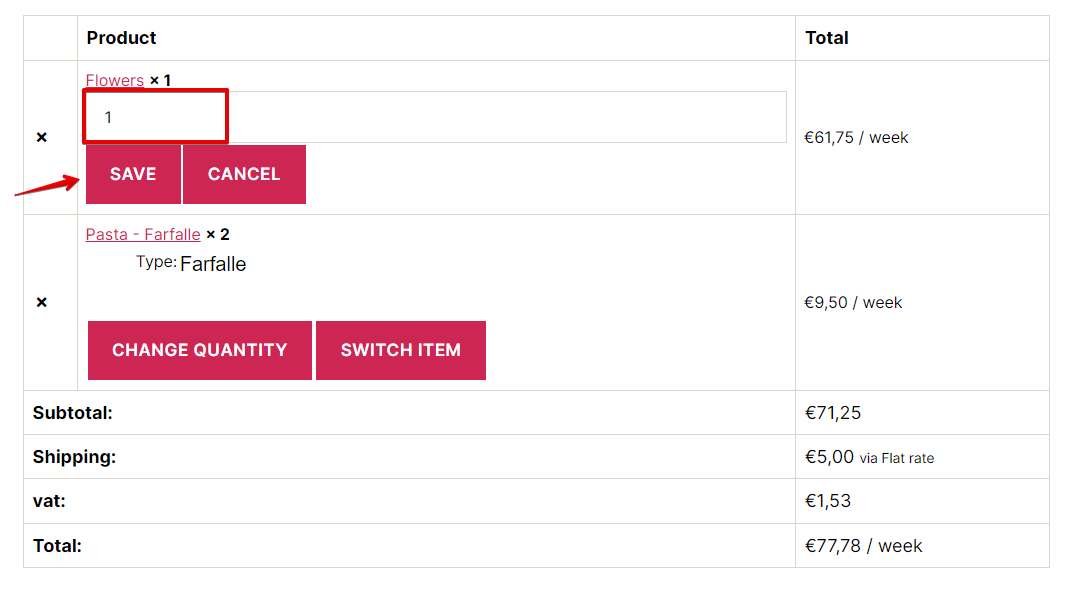
- Enter/select a new quantity and press [Save]
- The new value will be saved and the Subscription total adjusted.
- If users press [Cancel], the change quantity window will close without saving.
After the subscription has been changed a notice will be displayed and the customer will receive an email notification and a subscription note will be added to the back-end to record the change.
Note: The quantity cannot be changed to 0. If you enter 0 in the numeric field and click Save the value will not be saved.
Limitations
New subscription plans generated with Self-service Dashboard for WooCommerce Subscriptions do not support Sign-Up Fees and the [Change quantity] button will not be displayed for products that have a sign-up fee.
If the “Sold individually” option in the Inventory tab is checked the Admin can limit the quantity for a certain product on a subscription to 1. With this setting, the [Change quantity] button will not be displayed for that product.
Item removal
Customers can also remove products from a subscription by clicking on the ‘x’ symbol placed on the right side of the product.
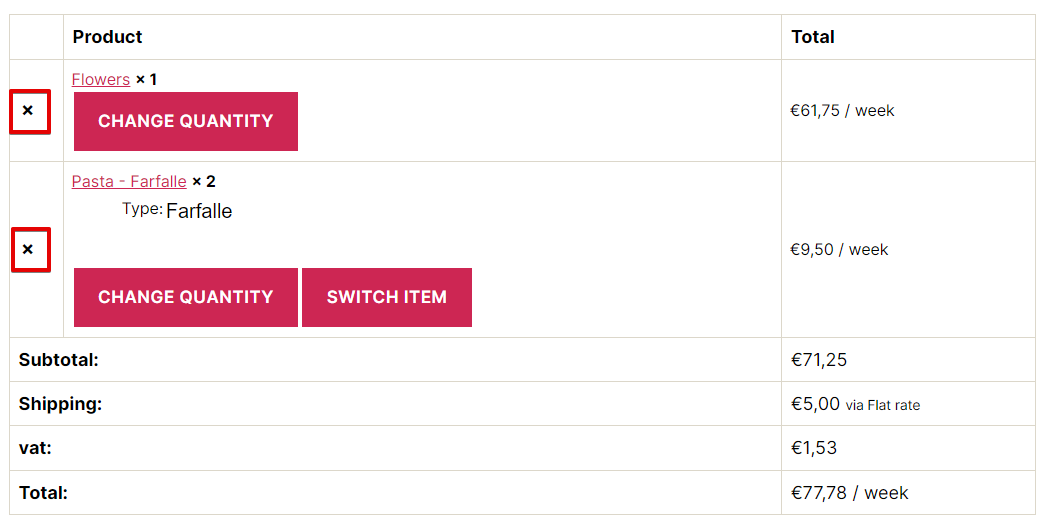
Note: Products can be removed from a subscription only if the subscription contains minimum 2 products
Switch between product variations
If users have purchased a variable subscription product, they will be able to switch between the product variations. To do so, the user will have to:
- Go to My Account – Subscriptions – view subscription
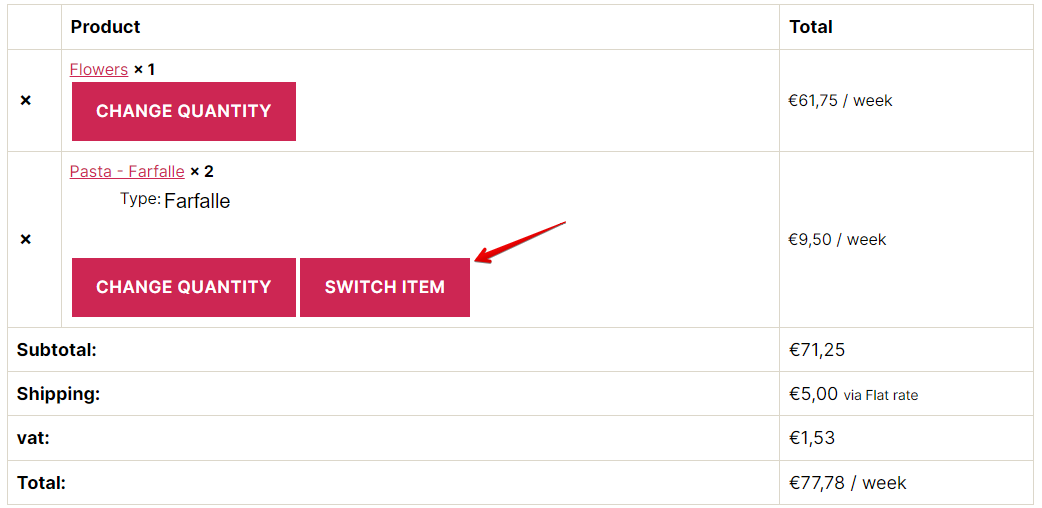
- Press the [Switch item] button, under the product title. A form will appear below the current table row, where the user can change variations using the drop-down menus.
- After the [Save] button is pressed, the current product variation is replaced with the one chosen by the user.
- If users press [Cancel], the switch item window will close without saving.
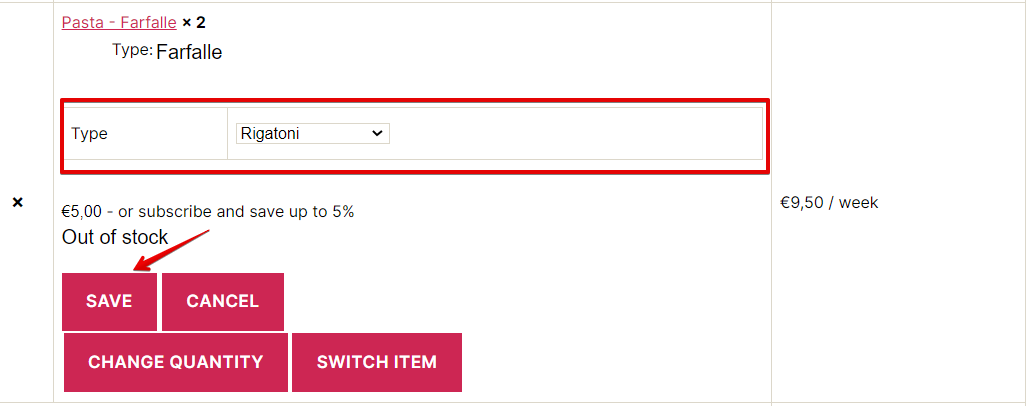
Note: If users choose a variation for a product with a different subscription frequency, the Subscription frequency will NOT be changed.
After the subscription has been changed a notice will be displayed and the customer will receive an email notification and a subscription note will be added to the back end to record the change.
Limitations
New subscription plans generated with Self-service Dashboard for WooCommerce Subscriptions do not support Sign-Up Fees and the [Switch item] button will not be displayed for products that have a sign-up fee.
The subscription frequency will not be changed if customers switch to another variation with a different frequency.
Add a new product to an active subscription
In order to add a new product to a subscription, the user will need to:
- Go to My Account – Subscriptions – view subscription
- Press the [Add new product] button. A list of subscription products will appear in a modal from which the user can choose a product. The list will contain the product types that have been enabled in the back-end settings for this functionality. The products that are already on the subscription will be excluded. The list will be loaded with the first 30 (ordered alphabetically) but customers can use the search bar to find any simple/variable subscription product.
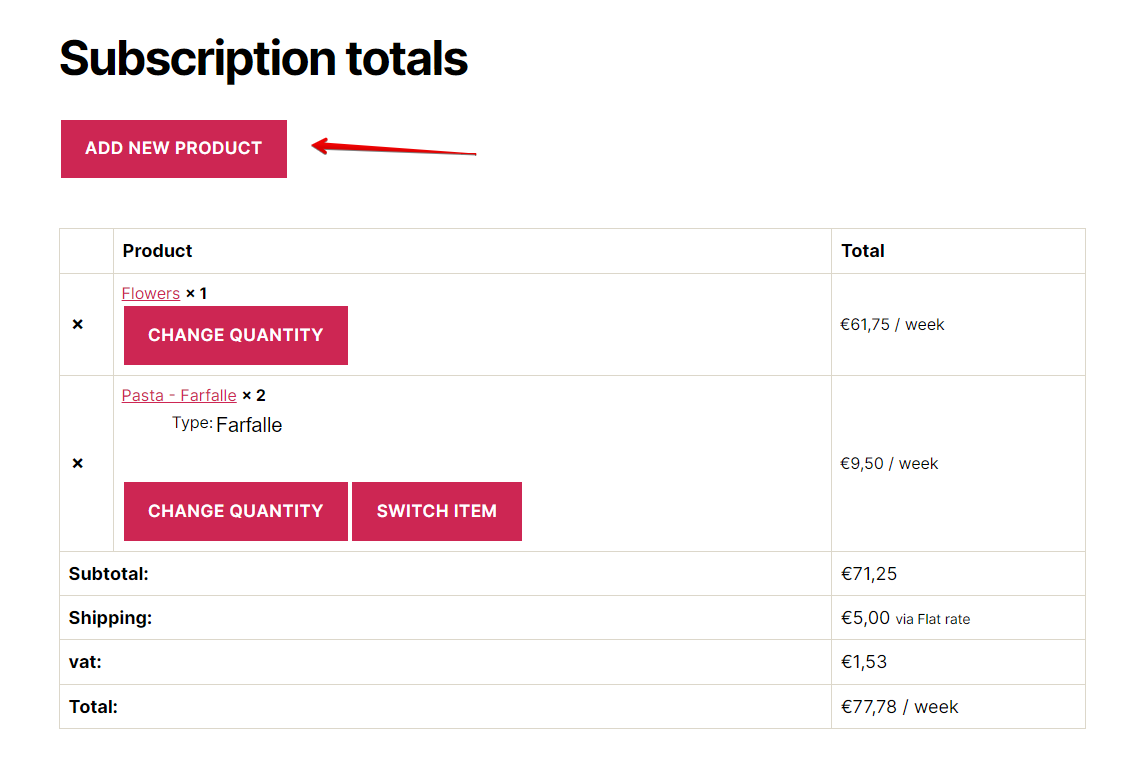
- Press the [Add to Subscription] button to add the product to the current Subscription. In the case of a Variable subscription product, a variation must first be selected before the product can be added to the subscription.
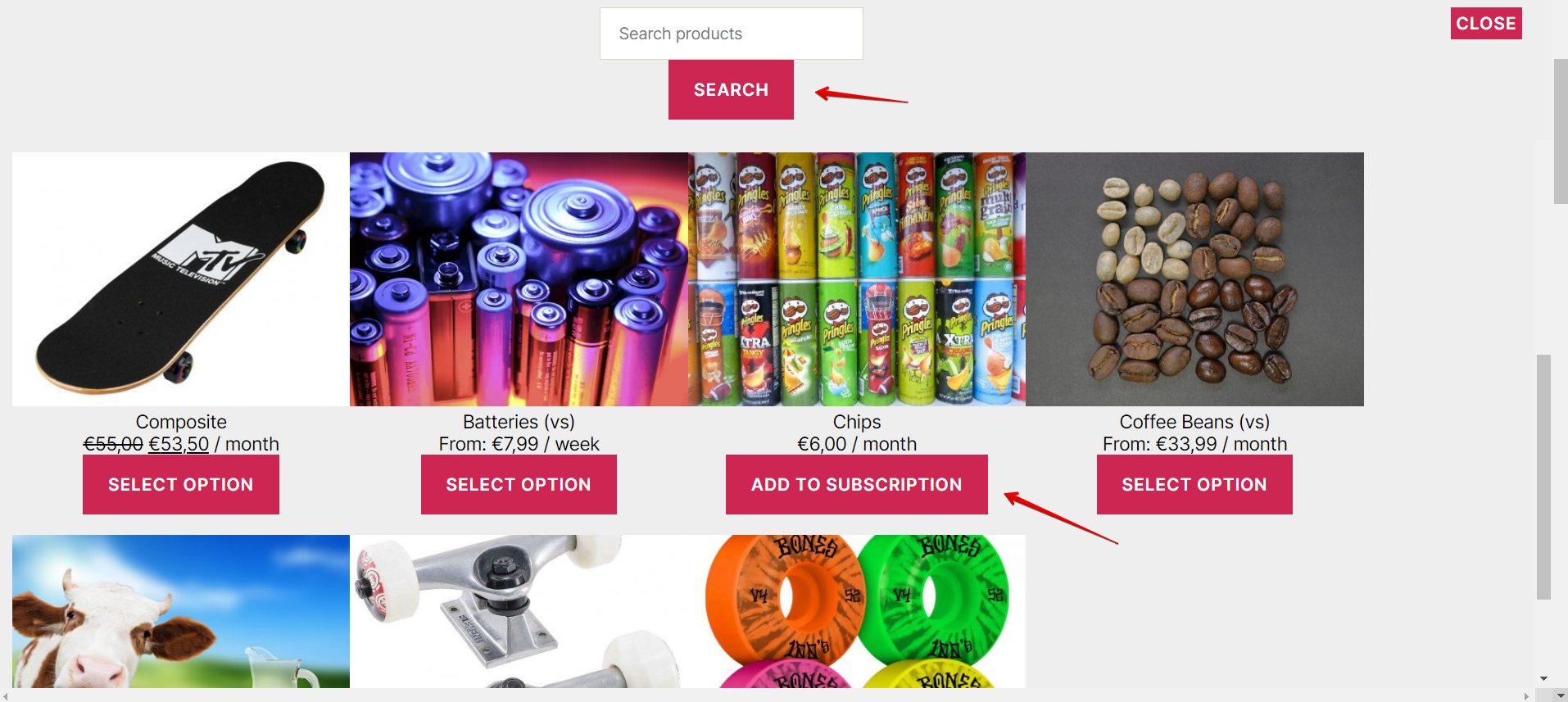
- If you press [Close], the Add new product modal will close.
After the subscription has been changed the customer will receive an email notification and a subscription note will be added to the back-end to record the change.
By default, only simple and variable subscriptions and Simple and Variable products that can be bought on a subscription basis using the plugin’s buy once or subscribe functionality are displayed. If you wish to add more product types to this functionality, please read the Filter “Add new product” query arguments section in the Hooks article
Limitations
Although only simple/variable subscriptions and simple/variable products that can be bought as subscriptions using the plugin’s buy once or subscribe functionality will be loaded in the ‘Add new product’ window, other products might be excluded from this feature if:
- The “Limit to one active subscription” option is selected in the back-end Advanced tab and the product is present on an active subscription.
- The “Limit to one of any status” option is selected in the back-end Advanced tab and the product is present on a subscription with any status. The customer cannot purchase that subscription product again unless the existing subscription is trashed or permanently deleted by a store manager.
- The “Sold individually” option is checked in the back-end Inventory tab and the product is already on the subscription that’s being viewed by the customer.
- The catalog visibility option is set to “Hidden”.
- The product is out of stock
Add a new product to an active subscription for the next shipment only
In order to add a new product to a subscription, the user will need to:
- Go to My account – Subscriptions – view subscription
- Press the [Add new product] button. A list of subscription products will appear below the current table row from which the user can choose a product. The list will contain both Simple and Variable Subscription products and Simple and Variable products that can be bought on a subscription basis.
- Press the [Add to Next Shipment] button to add the product to the current Subscription. In the case of a Variable subscription product, a variation must first be selected before the product can be added to the subscription.
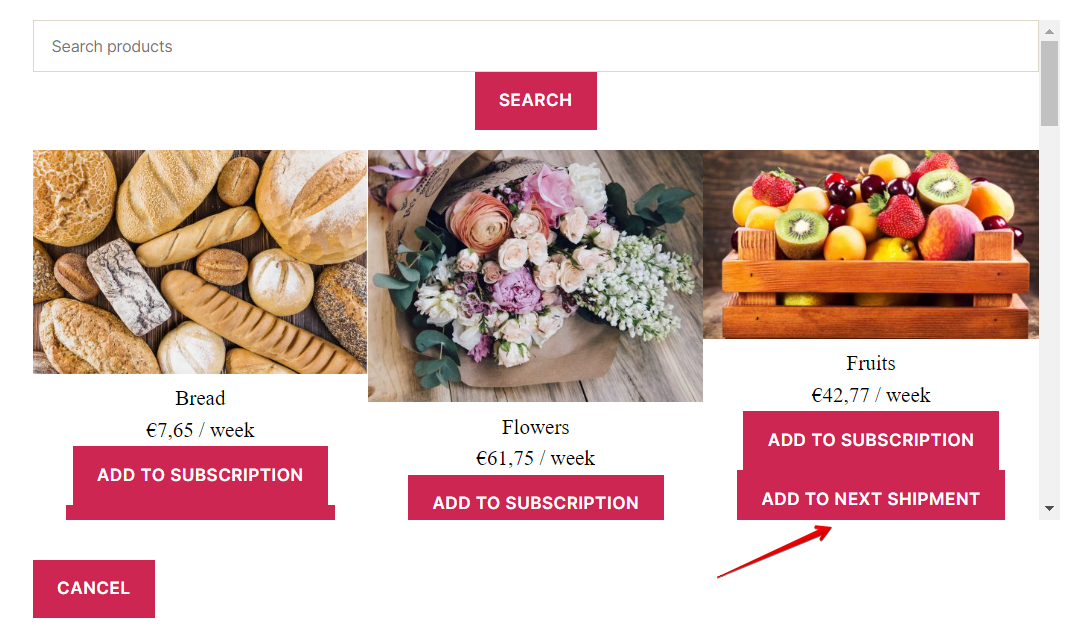
- If you press [Close], the Add new product modal will close.
The product will appear on the subscription with the text ‘Product added to next shipment only’. After the first renewal order, the product will automatically be removed from the subscription.
After the subscription has been changed the customer will receive an email notification and a subscription note will be added to the back-end to record the change.
Change the next payment date for the subscription
In order to change the next payment date for a subscription, the user will need to:
- Go to My Account – Subscriptions – view subscription
- Click on the [Change payment date] button.
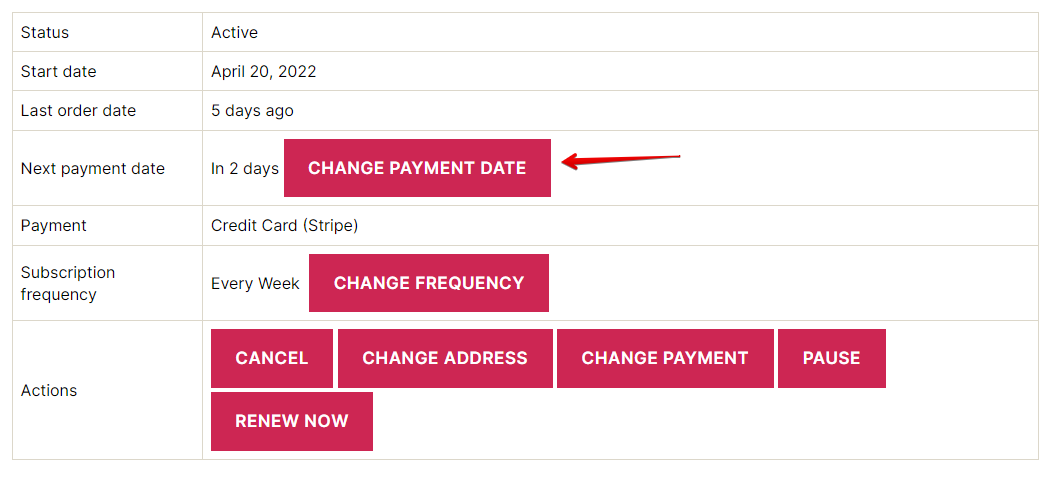
- Choose a date you want for the new payment date. The date picker will only allow the user to select a date within the next 30 days of the current date.
- Click [Save] to change the new payment date for the subscription
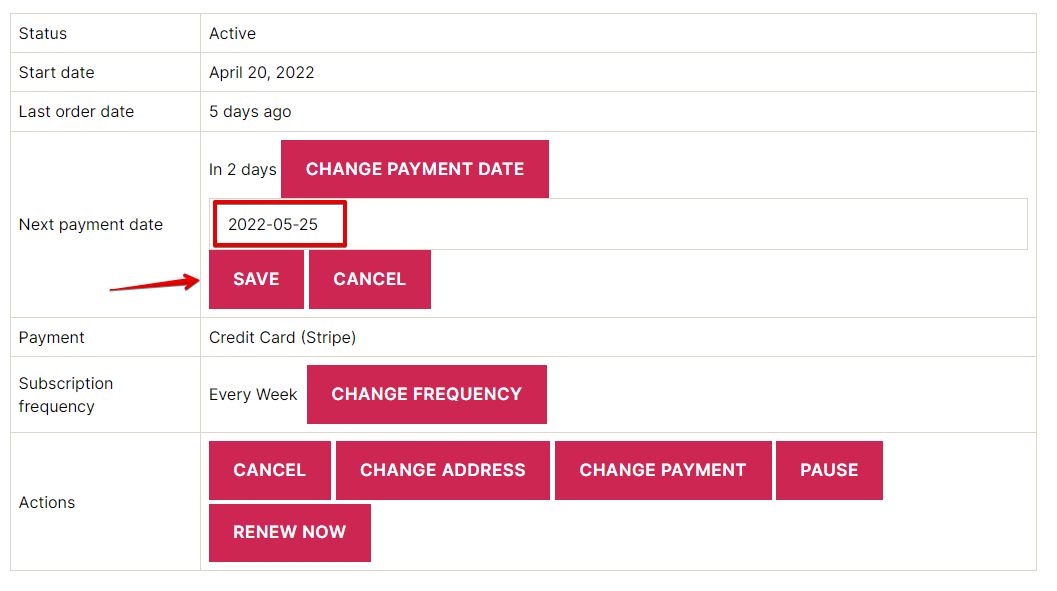
- If you press [Cancel], the window will close without saving.
After the new payment date has been saved, the subscription will be renewed on the selected date.
After the subscription has been changed the customer will receive an email notification and a subscription note will be added to the back-end to record the change.
Change the subscription frequency
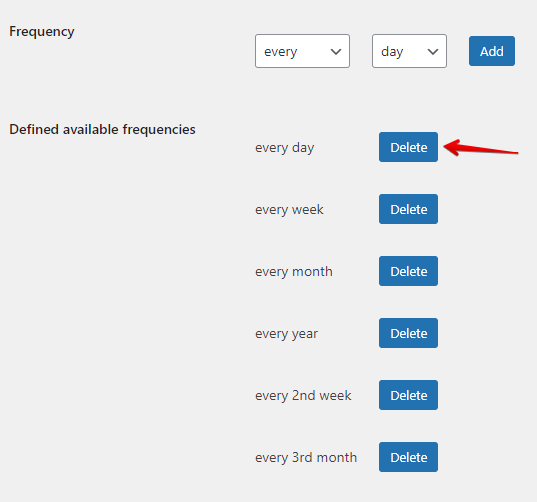
In order for customers to change the frequency of their subscription, the permitted subscription frequencies must be defined in the back end. To define a subscription frequency the admin must go through the following steps:
- Go to WooCommerce – Settings – Subscription Force
- Under ‘Available frequencies for customers’ new frequencies can be defined by selecting the frequency and clicking on the [Add] button. The list of added frequencies will be displayed below.
- Click the [Save] button to save the new frequency list.
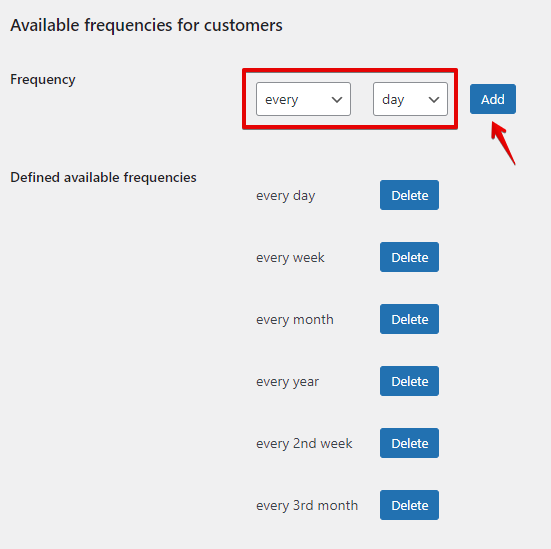
After a frequency list has been defined, the customer can change a subscription frequency to any defined frequency from the defined list by:
- Going to My account – Subscriptions – view subscription
- Click on the [Change frequency] button. A dropdown list with the defined frequencies will be displayed.
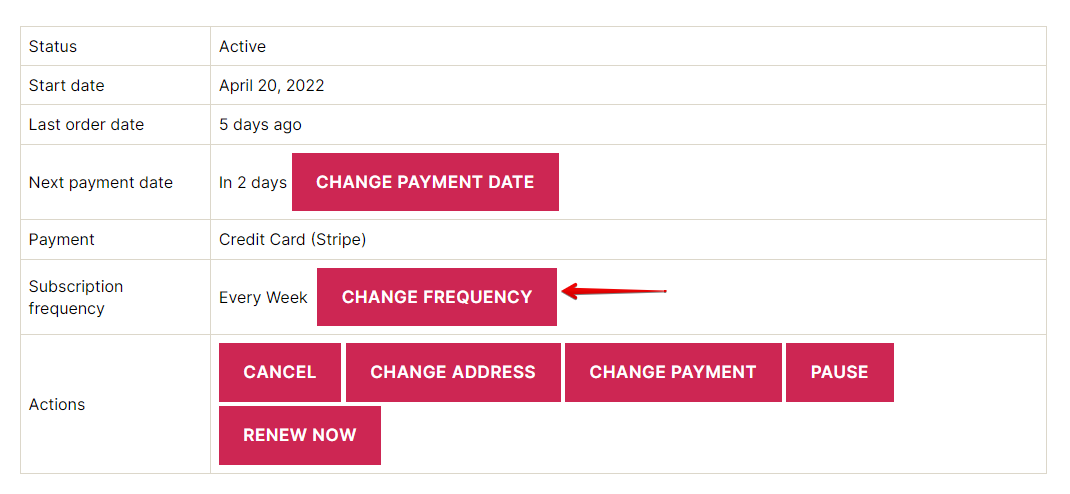
- lick [Save] to change the new subscription frequency.
- If you press [Cancel], the window will close without saving.
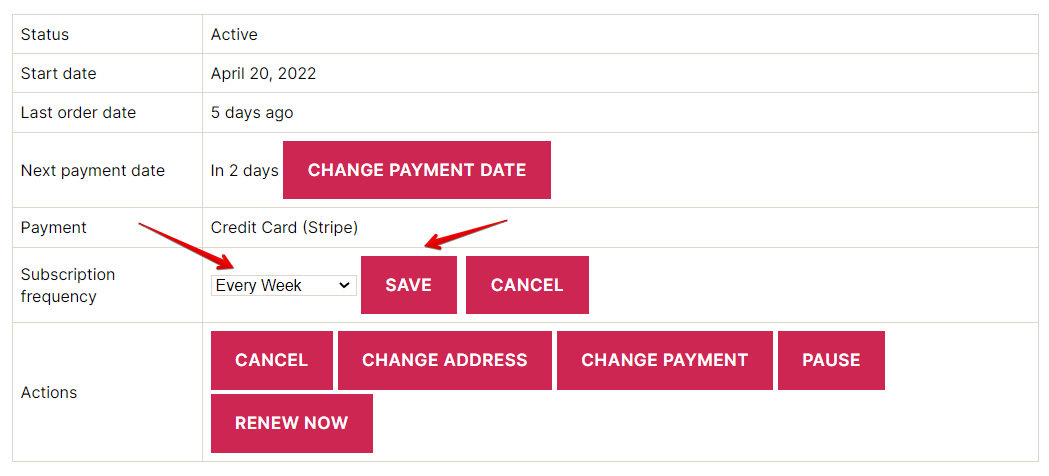
The new subscription frequency will take effect after the subscription’s next payment date.
After the subscription has been changed the customer will receive an email notification and a subscription note will be added to the back-end to record the change.
Limitations
The order in which the available frequencies are displayed in the front-end dropdown field is the same order they are saved in the back end. If you wish to change the order of available frequencies, the saved frequencies must be deleted and added in the correct order.
Pause a subscription until a specific date
In order to pause a subscription, the user will need to:
- Go to My account – Subscriptions – view subscription.
- Press the [Pause] button.
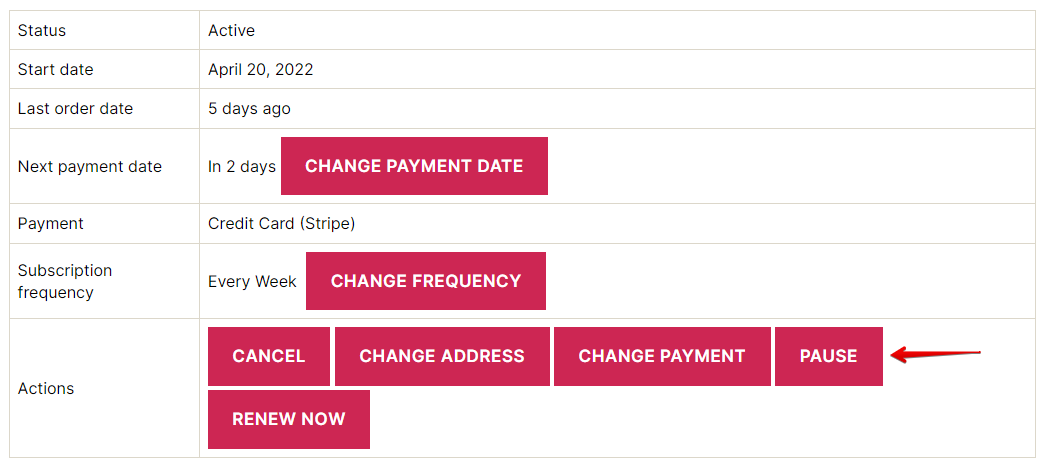
- Choose a date until you want the subscription to be paused from the date picker window.
- After the [Save] button is pressed, the subscription status will be changed to On-hold.
- If you press [Cancel], the window will close without pausing the subscription.
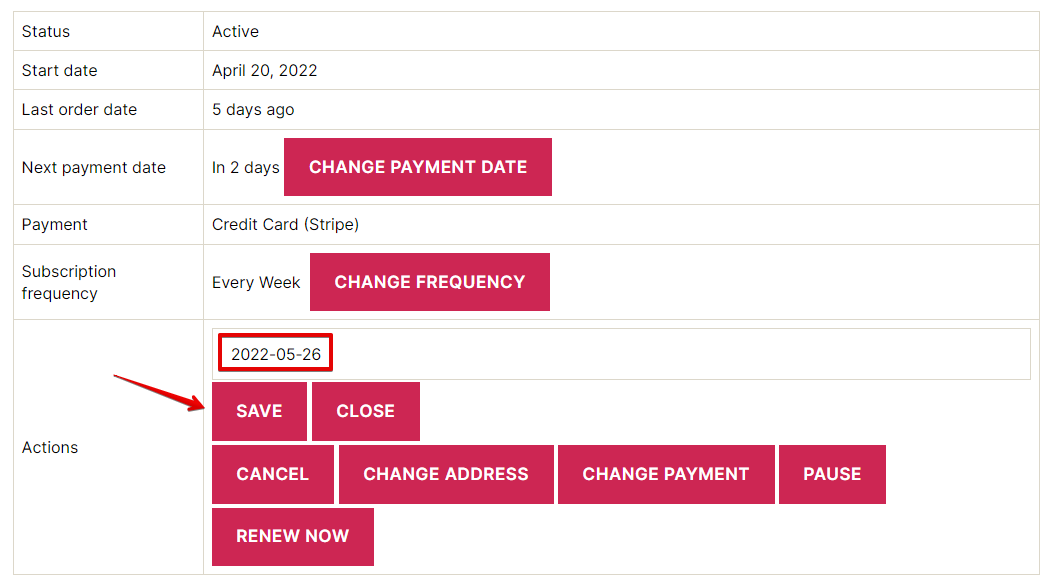
While the subscription is on hold until a specific date, that date can be seen in the Status field.
On the specific date set for renewal, the subscription will automatically change its status to Active.
After the subscription has been changed the customer will receive an email notification and a subscription note will be added to the back-end to record the change.
Important note: Pausing a subscription does not change the payment schedule. When a subscription is reactivated, the payment schedule will continue as it did before the subscription was paused. For example, if a subscription is renewed every month on the 15th, it will continue to renew every month on the 15th after it is paused and reactivated, regardless of the amount of time the subscription has been suspended.
Change the shipping method
In order to change the shipping method for the subscription, users need to:
- Go to My account – Subscriptions – view subscription
- Press the [Change shipping] button, in the Actions row from the subscription details table.
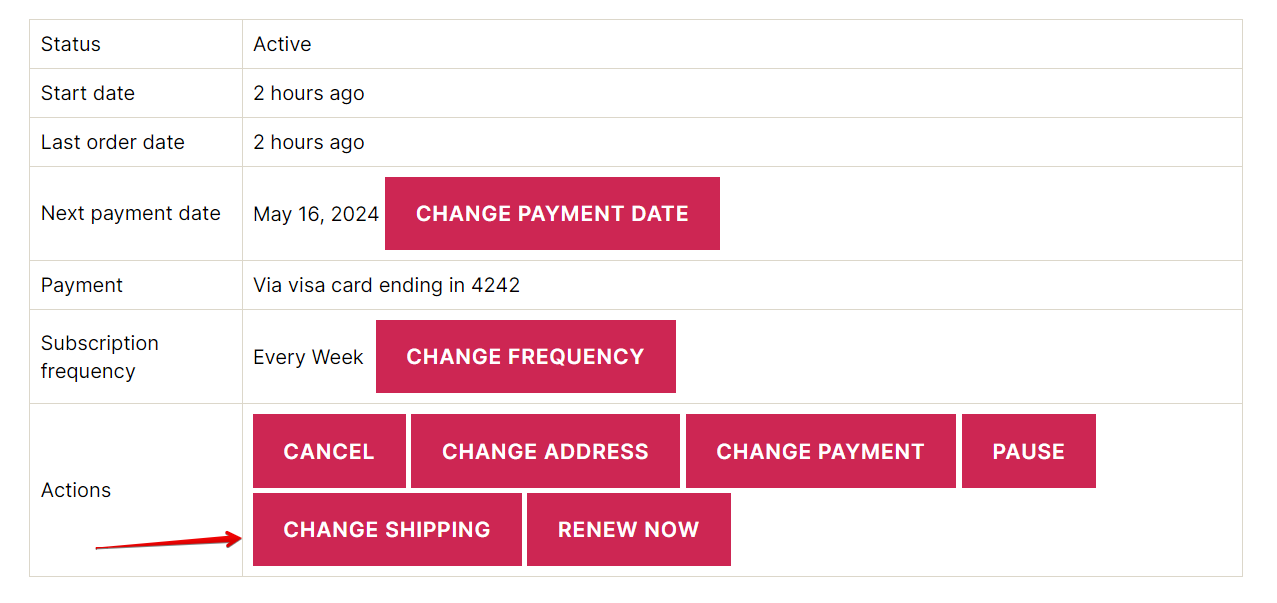
- Select the desired shipping method and press [Save]. The shipping methods loaded in the modal depend on the content of the user’s subscription and the delivery address.
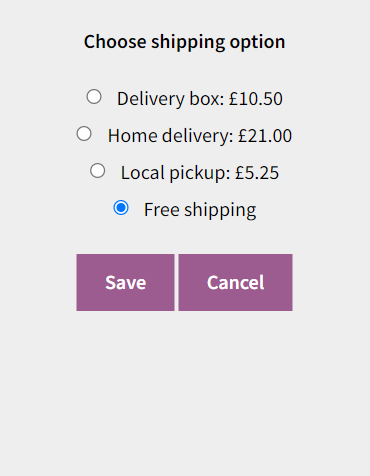
- If users press [Cancel], the Change shipping window will close without saving.
Note: Shipping methods are displayed in the order they are set in the WooCommerce shipping settings.
Update shipping method
If this feature is enabled, the users will be prompted to confirm their shipping method when they make changes to their subscription which can affect the subscription value. The shipping methods loaded in the modal depend on the content of the user’s subscription and the delivery address. The actions that prompt the shipping method update window are:
- Change subscription frequency
- Change quantity
- Switch item
- Add new product
Note: If the user does not confirm the shipping method, the shipping method set before the change will be saved if it is present among the shipping methods loaded in the window. If the shipping method set before the change is not present among the shipping methods loaded in the window, the first shipping method in the list will be saved.
Note: Shipping methods are displayed in the order they are set in the WooCommerce shipping settings.
Buy once or subscribe
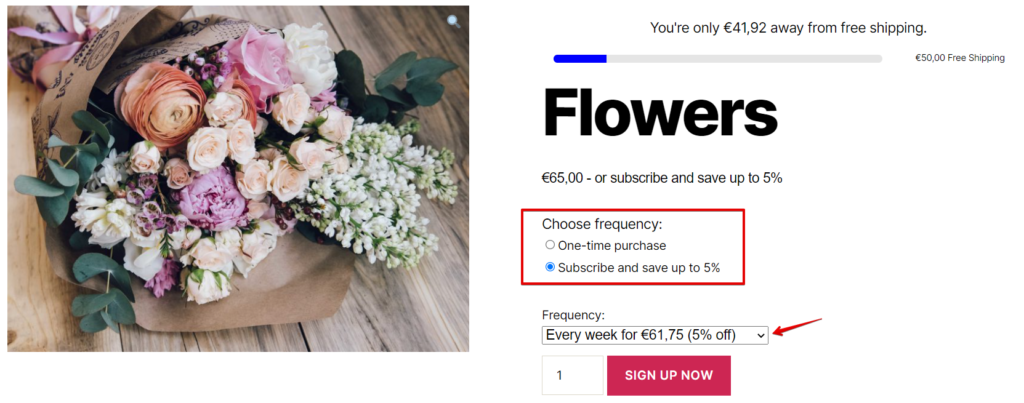
This feature will allow you to define subscription frequencies for simple and variable products. By defining one or more frequencies for a simple or variable product, the customers will have 2 options on the product page:
- One-time purchase
- Subscription
There are 2 ways in which subscription plans can be defined for products:
- Setting global subscription plans;
- Setting product-specific subscription plans.
Setting global subscription plans
Global subscription plans allow the admin to define subscription plans for entire categories of products. Global subscription plan settings can be found in WooCommerce – Settings – Buy Once or Subscribe – Global subscriptions.
To set up a global subscription plan you need to:
- Click on the [Add Frequency] button;
- Choose the title for the call to action, e.g. “Choose subscription frequency”. This is optional and if you leave this blank, the default text “Choose Frequency” title will be used;
- Select the product categories you want to add the subscription plans to. All products from the selected categories will display the subscription plan (except subscription-type products);
- Choose the subscription interval. The subscription intervals are imported from Woo Subscriptions;
- Add a percentage discount (without the ‘%’ symbol). The discount will be applied to the regular product price or the sale price if one is set. The percentage discount is optional and if you do not wish for the subscription plan to have a discounted price you can leave the field empty or input ‘0’;
- Click the [Save] button to save the defined global subscription plans.
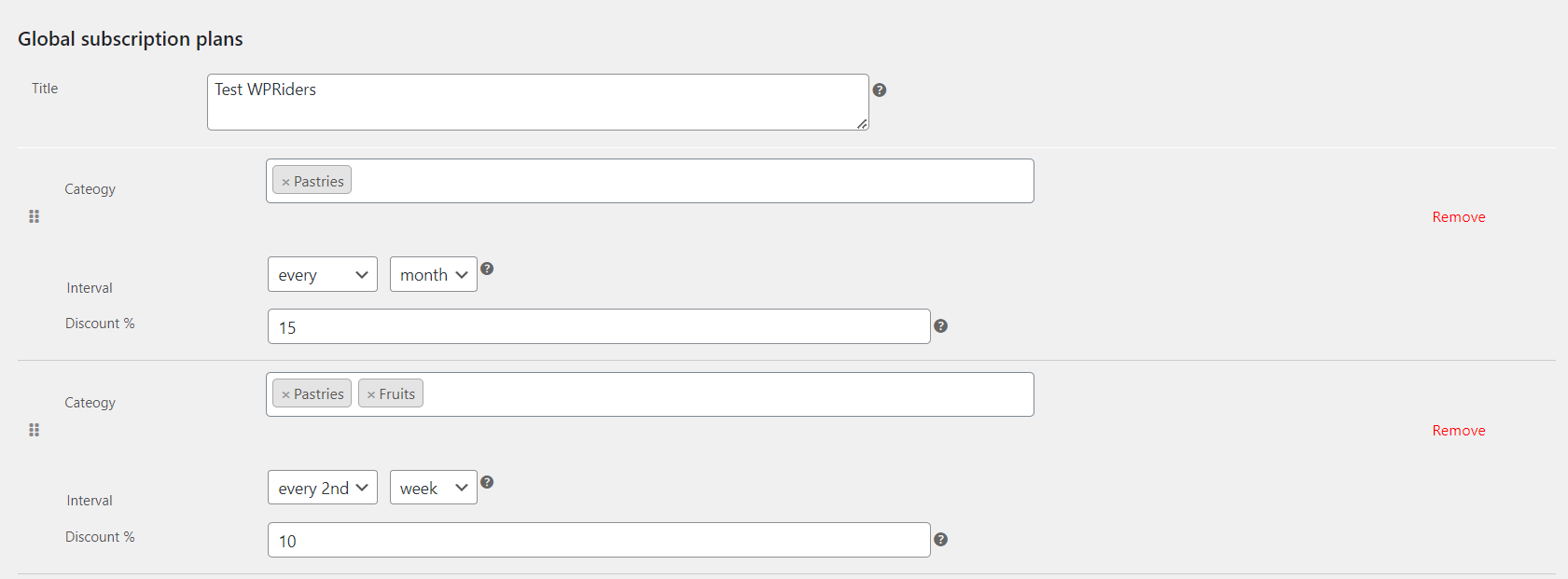
You can add as many subscription plans as you like. If you have more global plans defined on the page, you can drag and drop them in the desired order using the icon from the left-hand side of the plan. On the front-end product page, the subscription plan options will be displayed in the same order as the one on the Global subscriptions setting page. If you wish to remove a plan, you can click the [Remove] button for the respective plan.
Global subscription plans can only be applied to simple, variable, bundle, and composite product types. If subscription-type products are included in a category for which a global plan has been defined, the global plans will not be displayed on the front-end product page.
Note: If you do not wish to offer a subscription discount to the sale price of a product (the sale price set on the product page) you can use the bos_use_regular_price filter to apply the discount to the regular price. Check our Filter documentation for more information on this filter.
Note: For variable products, subscription plans and discounts are set at the product level. Therefore, all variations will have the same subscription plans and discounts.
Note: Global subscription plans can be overwritten if a product has other plans defined on the product page. See the next section for more information.
Setting product-specific subscription plans
Product-specific subscription plans can be defined on the back-end product page and will overwrite any global plans that might apply to the product. To define subscription frequencies for a product you have to:
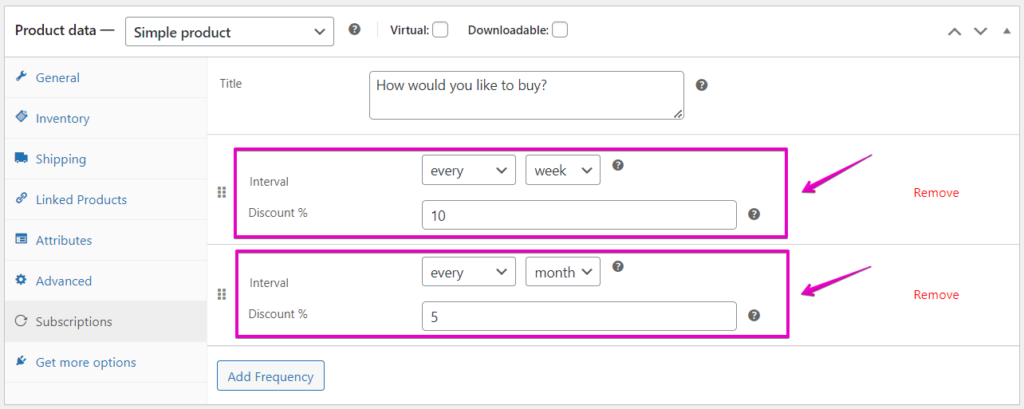
- Go to Product Data > Subscriptions tab on the back-end product page;
- Enter a Title for your Call To Action, e.g. “Choose subscription frequency”. This is optional and if you leave this blank, the default text “Choose Frequency” title will be used;
- Click on the [Add Frequency] button to add a subscription plan:
- Choose the subscription interval. The subscription intervals are imported from Woo Subscriptions;
- Add a percentage discount (without the ‘%’ symbol). The discount will be applied to the regular product price or the sale price if one is set. The percentage discount is optional and if you do not wish for the subscription plan to have a discounted price you can leave the field empty or input ‘0’;
- When you are done adding all the frequencies, Publish or Update the product to save the changes.
You can add as many subscription plans as you like. The plans can be ordered and deleted, and this will be reflected in the way the plans will be displayed on the product page.
Note: If you do not wish to offer a subscription discount to the sale price of a product (the sale price set on the product page) you can use the bos_use_regular_price filter to apply the discount to the regular price. Check our Filter documentation for more information on this filter.
Note: For variable products, subscription plans and discounts are set at the product level. Therefore, all variations will have the same subscription plans and discounts.
Front-end display
On the product page, the customers will be able to choose between a one-time purchase and a subscription. If a product has more subscription plans defined then the customer will be able to choose the desired plan from a dropdown list.
When the subscription option is selected, the Add to cart button text will change to the text set in the Add to Cart Button Text field from WooCommerce – Settings – Subscriptions.
Once a product has been added to the cart as a subscription, the Woo Subscriptions plugin takes over to complete the checkout and subscription creation process.
If an order contains products with different subscription frequencies, then the products will be grouped according to their subscription frequency and a subscription will be created for each frequency (Woo Subscriptions functionality).
General settings
There are other settings that can be used to change the functionality and appearance of the plugin. These settings can be found in WooCommerce – Settings – Buy Once or Subscribe – General.
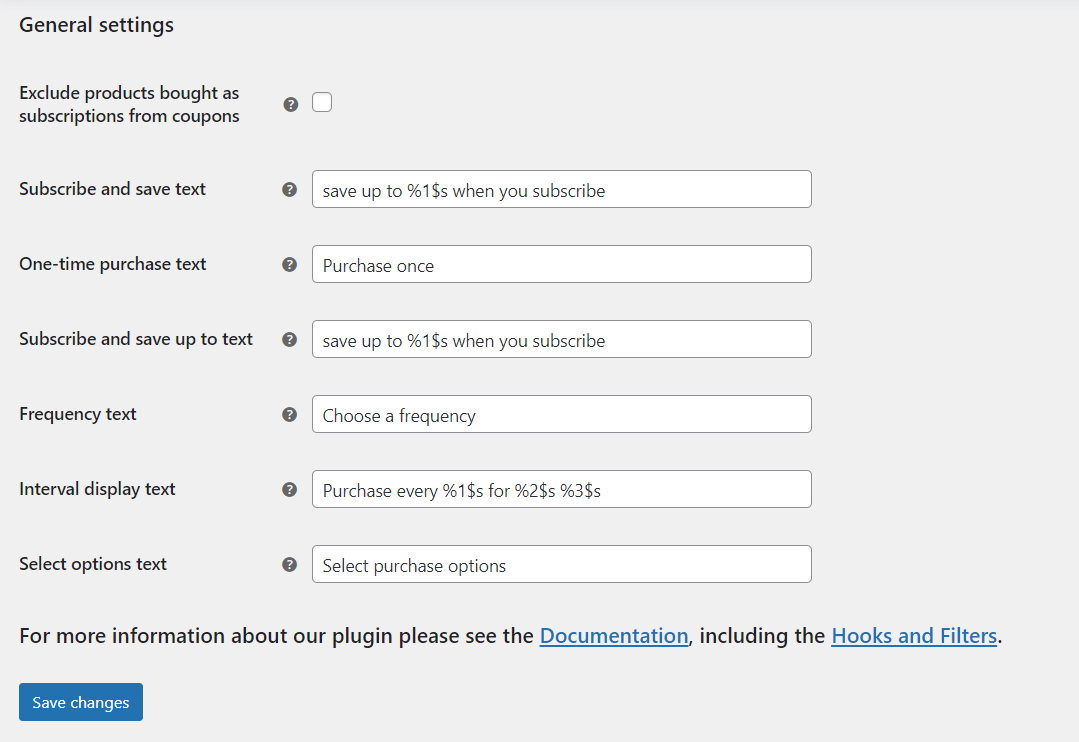
Settings for changing the strings displayed on the product page
These settings are:
- Subscribe and save text. Using this field the admin can edit the ‘subscribe and save’ text displayed next to the product price. The field accepts the variable %1$s which can be used as a placeholder within the string for the maximum discount percentage that is available for the product;
- One-time purchase text. Using this field the admin can edit the text for the one-time purchase radio option;
- Subscribe and save up to text. Using this field the admin can edit the text for the subscription radio option. The field accepts the variable %1$s which can be used as a placeholder within the string for the maximum discount percentage that is available for the product;
- Frequency text. Using this field, the admin can edit the frequency label displayed before the subscription plan dropdown;
- Interval display text. Using this field the admin can edit the text displayed in the subscription plans dropdown. The field accepts 3 variables:
- %1$s which can be used as a placeholder within the string for the subscription interval;
- %2$s which can be used as a placeholder within the string for the price of the subscription plan;
- %3$s which can be used as a placeholder within the string for the discount applied for the subscription plan;
- Select options text. This field can be used to edit the [Select options] button text displayed for products with subscription plans defined.
Coupon settings
By default, products bought as subscriptions accept any coupon type that can be applied to a subscription-type product in the cart. If you wish for products bought as subscriptions using Buy Once or Subscribe to be excluded from being discounted using a coupon, you can use the Exclude products bought as subscriptions from coupons setting. When checked, the products bought as subscription will be excluded from the calculation of the coupon discount.
Note: The Exclude products bought as subscriptions from coupons setting only applies to products purchased as subscriptions using the Buy Once or Subscribe plugin. It will not apply to subscription-type products or products bought as a one-time purchase.
Changing Add to Cart button text on the product page
Changing the text for the Add to cart button or Sign up now button can be done using the WooCommerce subscriptions settings and filters.
- The Add to cart button text can be changed by using the WooCommerce filter described in the documentation.
- The Sign up now button text can be changed using the Following WooCommerce Subscriptions setting WooCommerce – Settings – Subscriptions – Add to Cart Button Text
Custom add-to-cart links
In order to add a product to the cart as a subscription using a custom add-to-cart link you will need to know the product ID (and variation ID in case of variable products) for the product you want to add to the cart. The link will have the following structure:
https://domain.com/?add-to-cart={Product ID}&variation_id={Variation ID}&bos4w-purchase-type=1&convert_to_sub_plan_{Product ID}={Subscription interval}_{Subscription period}_{Discount}
An example of a custom add-to-cart link is:
https://domain.com/?add-to-cart=3067&variation_id=3068&bos4w-purchase-type=1&convert_to_sub_plan_3067=1_month_10
In order to add a product to the cart as a one-time purchase, the link structure is the same as for any WooCommerce product:
https://domain.com/?add-to-cart={Product ID}&variation_id={Variation ID}
By default, the above examples will add 1 piece of the product to the cart. If you want to add more than one piece you can use the quantity parameter like in the example below:
https://domain.com/?add-to-cart=3067&quantity=2&variation_id=3068&bos4w-purchase-type=1&convert_to_sub_plan_3067=1_month_10
The subscription period and subscription interval are the ones used by WooCommerce Subscriptions. In case the combination between the subscription period, subscription interval and discount is not matched with any of the frequencies and discounts set on the product, the product will be added to the cart at full price and without a subscription frequency (as a simple or variable product).
Limitations
Sign-Up Fees
New subscription plans generated with Buy Once or Subscribe for WooCommerce Subscriptions do not support sign-up fees.
Adding prorated products/carts to subscriptions
It will not be possible to add a prorated and synchronized product/cart to an existing subscription.
Subscription plans for product variations
In the case of variable products, subscription plans and discounts are set at the product level, not at the variation level. Therefore, all variations of a product will have the same subscription plans and discounts.
For developers
Hooks
Add subscription simple product
Description:
ssd_add_simple_product_before_calculate_totals – fired after a new simple product has been added to the subscription.
Usage:
add_action( 'ssd_add_simple_product_before_calculate_totals', function( $subscription, $product ) { // custom code }, 10, 2 );
Attributes:
$subscription – Subscription object data;
$item_id – The ID of the item with quantity updated;
$product – Product object data.
Add subscription variable product
Description:
ssd_add_variable_product_before_calculate_totals – fired after a new variable product has been added to the subscription.
Usage:
add_action( 'ssd_add_variable_product_before_calculate_totals', function( $subscription, $product, $variable_id ) { // custom code }, 10, 3 );
Attributes:
$subscription – Subscription object data;
$product – Product object data;
$variable_id – The product variable id.
Pause a subscription until a specific date
Description:
ssd_pause_subscription – fired after the subscription is paused until a specific date.
Usage:
add_action( ssd_pause_subscription, function( $subscription_id, $pause_date ) { // custom code }, 10, 2 );
Attributes:
$subscription_id – Subscription id;
$pause_date – The date until the subscription is paused.
Pause subscription notification
Description:
paused_subscription_notification – fired after the subscription is paused until a specific date.
Usage:
add_action( paused_subscription_notification, function( $subscription_id ) { // custom code }, 10, 2 );
Attributes:
$subscription_id – Subscription id.
Quantity update hook before calculating totals
Description:
ssd_quantity_update_before_calculate_totals – fired after the subscription item quantity gets updated.
Usage:
add_action( 'ssd_quantity_update_before_calculate_totals', function( $subscription, $item_id, $qty ) { // custom code }, 10, 3 );
Attributes:
$subscription – Subscription object data;
$item_id – The ID of the item with quantity updated;
$qty – The new quantity for the item.
Update subscription variable item before calculating totals
Description:
ssd_update_variable_item_before_calculate_totals – fired after the subscription variable item gets updated.
Usage:
add_action( 'ssd_update_variable_item_before_calculate_totals', function( $subscription, $item_id, $product, $variation_id ) {
// custom code
}, 10, 4 );
Attributes:
$subscription – Subscription object data;
$item_id – The ID of the item with quantity updated;
$product – Product object data;
$variation_id – Variation ID;
Display/Execute before the search form is displayed
Description:
ssd_before_add_to_cart_form_search – executes before the search form is displayed inside “Add new product”.
Usage:
add_action( 'ssd_before_add_to_cart_form_search', function( $subscription_id ) {
	// custom code
}, 10, 1 );
Attributes:
$subscription_id – Subscription ID.
Display/Execute before products are displayed
Description:
ssd_before_add_to_cart_form – executes before the products are displayed inside the “Add new product” modal.
Usage:
add_action( 'ssd_before_add_to_cart_form', function( $subscription_id ) {
	// custom code
}, 10, 1 );
Attributes:
$subscription_id – Subscription ID.
Display/Execute after the variable product is displayed in the “Add new product” modal
Description:
sdd_after_variable_product_form – executes after the products are displayed inside the “Add new product” modal.
Usage:
add_action( 'sdd_after_variable_product_form', function( $order_id, $subscription_id ) {
	// custom code
}, 10, 2 );
Attributes:
$order_id – Order ID;
$subscription_id – Subscription ID.
Display/Execute after a simple product is displayed in the “Add new product” modal
Description:
sdd_after_simple_product_form – executes after the products are displayed inside the “Add new product” modal.
Usage:
add_action( 'sdd_after_simple_product_form', function( $order_id, $subscription_id ) {
	// custom code
}, 10, 2 );
Attributes:
$order_id – Order ID;
$subscription_id – Subscription ID.
Trigger event when the subscription changes to active
Description:
active_subscription_notification – executes when the subscription is set to active, from pause status.
Usage:
add_action( 'active_subscription_notification', function( $order_id ) {
	// custom code
}, 10, 1 );
Attributes:
$order_id – Order ID.
Trigger event when the subscription frequency is changed
Description:
sf_frequency_changed_email – executes when the subscription frequency is changed.
Usage:
add_action( 'sf_frequency_changed_email', function( $subscription_id, $frequency ) {
	// custom code
}, 10, 2 );
Attributes:
$subscription_id – Subscription ID;
$frequency – Frequency string.
Trigger event when the subscription payment date has changed
Description:
change_payment_date_subscription_notification – executes when the subscription payment date has changed.
Usage:
add_action( 'change_payment_date_subscription_notification', function( $subscription_id ) {
	// custom code
}, 10, 1 );
Attributes:
$subscription_id – Subscription ID.
Trigger event when the subscription payment date is changed
Description:
sf_change_next_payment_date_for_subscription – executes when the subscription payment date has changed.
Usage:
add_action( 'sf_change_next_payment_date_for_subscription', function( $subscription_id, $next_date ) {
	 // custom code
}, 10, 2 );
Attributes:
$subscription_id – Subscription ID;
$next_date – Next string.
Filters
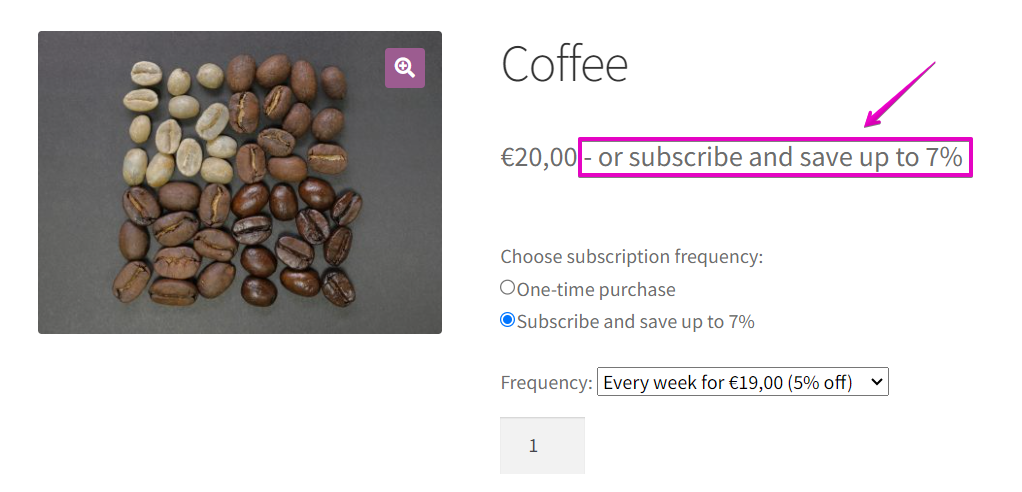
Filter for editing the text next to the price when a product has a Subscription frequency set
Description:
bos4w_subscription_text_display – allows editing of the “or subscribe and save up to” text.
Usage:
add_filter( 'bos4w_subscription_text_display', function ( $display_text ) {
   // custom code
   return $display_text;
}, 10, 1 );
Attributes:
$display_text – String to display
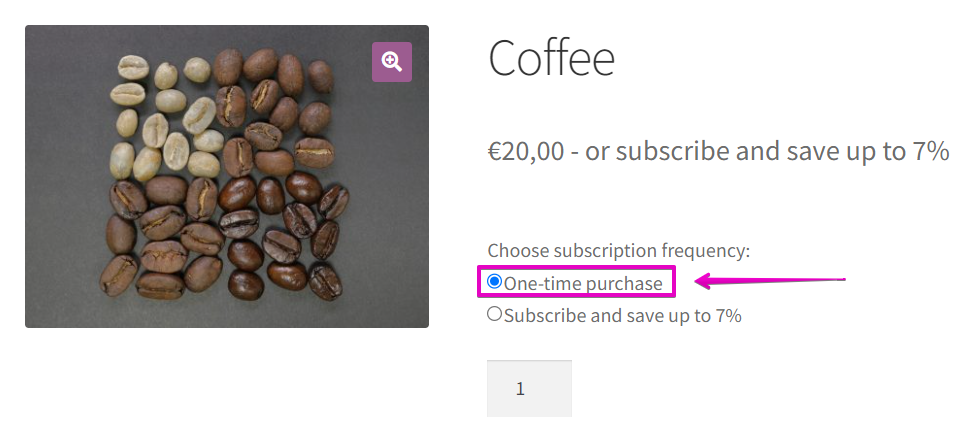
Filter for editing the text for the One-time purchase radio option
Description:
bos4w_one_time_buy_text – change the text for the One-time purchase radio option displayed on the product page
Usage:
add_filter( 'bos4w_one_time_buy_text', function ( $display_text ) {
   // custom code
   return $display_text;
}, 10, 1 );
Attributes:
$display_text – Radio option text.
Change the Interval and discount display for BOS products
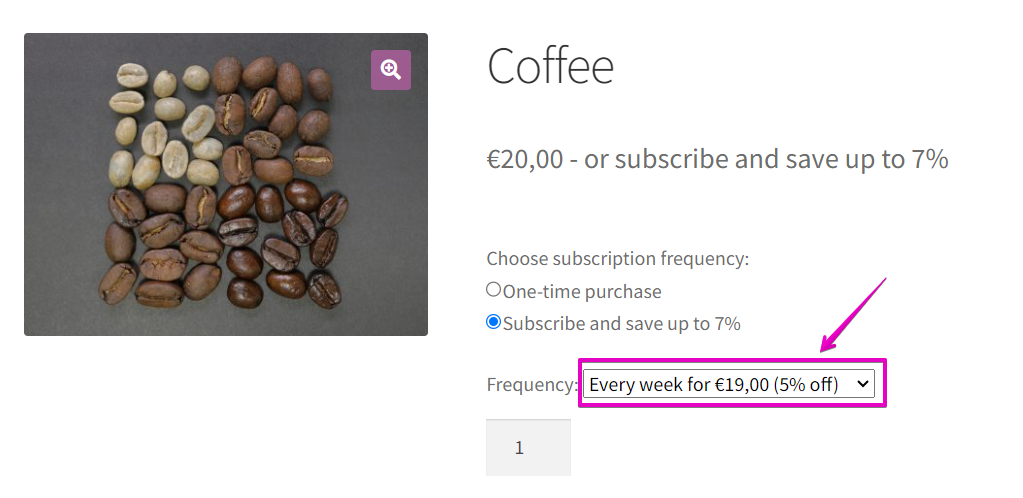
Description:
ssd_subscription_plan_display – change the Interval and discount display options.
Usage:
add_filter( 'ssd_subscription_plan_display', function( $option_text, $period_interval, $discounted_price, $display_discount ) {
return $option_text;
}, 10, 4);
Attributes:
$option_text – The discount select text;
$period_interval – Period interval;
$discounted_price – The discounted price;
$display_discount – The discount percentage.
Change the text and discount display in the radio button for the subscription purchase option
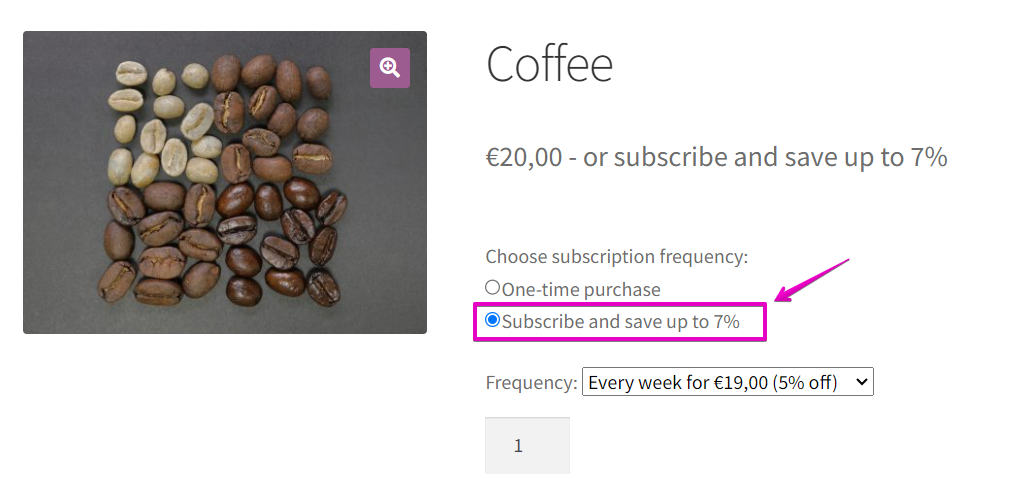
Description:
bos4w_and_save_up_to_text – change the text and discount for the radio button for the subscription purchase option displayed on the product page
Usage:
add_filter('bos4w_and_save_up_to_text', function($text,$discount) {
   $text = 'Custom text be added';
   return $text;
}, 10, 2);
Attributes:
$text – Radio option text.
$discount – highest discount set for the product.
Change the text for the frequency dropdown label
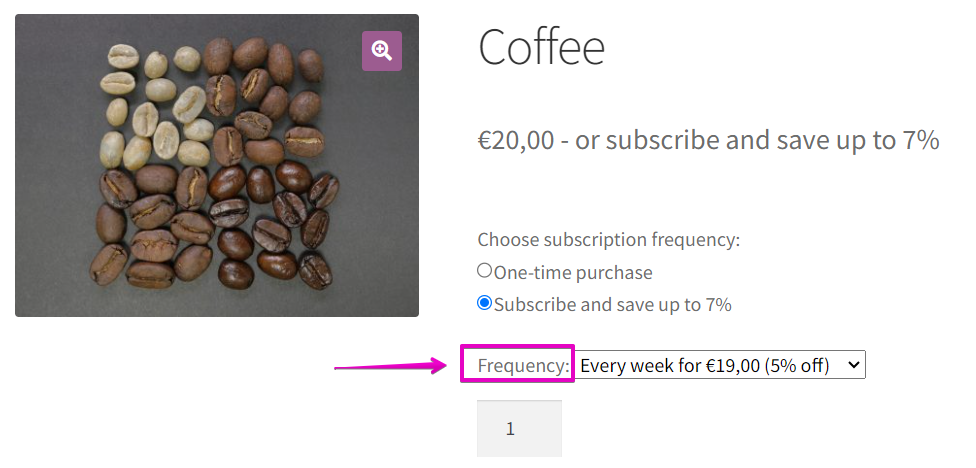
Description:
bos4w_dropdown_label_text – change the text for the frequency dropdown label displayed on the product page
Usage:
add_filter( 'bos4w_dropdown_label_text', function( $text ) {
   $text = 'Custom text';
   return $text;
}, 10, 1 );
Attributes:
$text – Dropdown label text.
Change/Update the BOS products query attributes
Description:
bos4w_product_query_args – contains the query attributes used in the wc_get_products() function.
Usage:
add_filter( 'bos4w_product_query_args', function( $prod_args ) {
	// custom code  <br>
	return $prod_args;
}, 10, 1 );
Attributes:
$prod_args – wc_get_products() query attributes.
Change the “Select options” button text
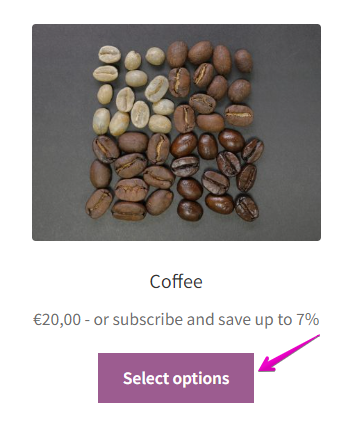
Description:
bos4w_add_to_cart_text – allow text change on the “Select options” button.
Usage:
add_filter( 'bos4w_add_to_cart_text', function( $button_text, $product ) {
  return 'Select options';
}, 10, 2);
Attributes:
$button_text – The button text.
$product – Product object.
Filter for using the regular price instead of the sale price when the product is bought as a subscription
By default, the plugin will use the sale price if there is one set on the product back-end page. You can use this filter if you want the subscription purchases to use the regular price when a sale price is set.
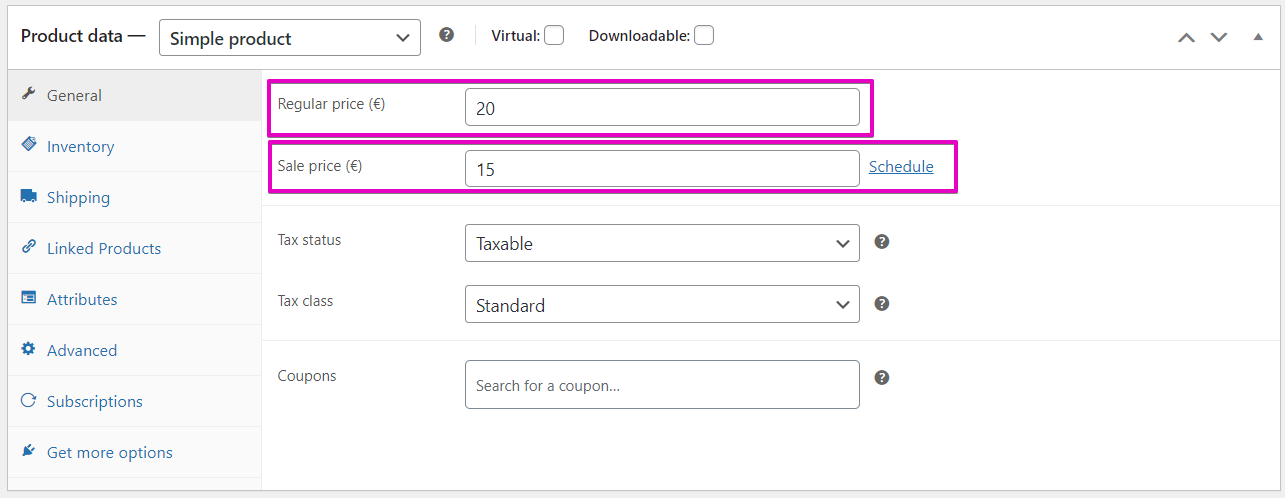
Description:
bos_use_regular_price – allows the use of the product’s regular price instead of the sale price. The default is set to false.
Usage:
add_filter( 'bos_use_regular_price', function( $use_regular_price ) {
   // custom code
   return $use_regular_price;
}, 10, 1 );
Attributes:
$use_regular_price – bool true/false.
Change the “Switch item” button text
Description:
ssd_switch_item_text’ – allow text change on the “Switch item” button.
Usage:
add_filter( 'ssd_switch_item_text', 'custom_switch_item_text', 10, 1 );
function custom_switch_item_text( $text ) {
return 'Switch item';
}
Attributes:
$text – The button text.
Edit the “Change quantity” button attributes
Description:
ssd_subscriptions_change_link – has the button HTML.
Usage:
add_filter( 'ssd_subscriptions_change_link', function( $switch_subscription_link, $item_id, $item, $subscription ) {
// custom code

return $switch_subscription_link;
}, 10, 4 );
Attributes:
$switch_subscription_link – The button HTML;
$item_id – Subscription Item ID;
$item – Subscription Item object;
$subscription – Subscription object.
Filter “Add new product” query arguments
Description:
ssd_product_query_args – allows query arguments to change. The filter allows you to change the WP_Query parameters used to get the products the user sees when adding a new item to a Subscription.
Usage:
add_filter( 'ssd_product_query_args', function( $args ) {
// custom code
return $args;
}, 10, 1 );
Attributes:
$args – wc_get_products arguments.
Filter “Add new product” product object
Description:
ssd_add_new_product_list – allows query arguments to change. The filter allows you to manipulate the object containing the list of products the user sees when adding a new item to a Subscription.
Usage:
add_filter( 'ssd_add_new_product_list', function( $products ) {
// custom code

return $products;
}, 10, 1 );
Attributes:
$products – products object.
Filter for changing the calendar limit for the Change next payment date functionality
Description:
ssd_calendar_number_of_days – a filter that can be used for changing the calendar limit (in number of days) for the Change next payment date functionality
Usage:
add_filter( 'ssd_calendar_number_of_days', function ( $days ) {
   $days = 45;
   return $days;
}, 10, 1 );
Attributes:
$days – number of days for the calendar limit.
Change Paused date display format
Description:
ssd_paused_date_format – allows the user to change the date format display in front end.
Usage:
add_filter( 'ssd_paused_date_format', function( $date ) {
// custom code

return $date;
}, 10, 1 );
Attributes:
$date – The date – default format ‘jS \of F Y’;
Add/Update custom settings in the Self-serve Dash settings tab
Description:
settings_tabs_ssd_settings – contains all the settings inside SSD WooCommerce tab.
Usage:
add_filter( 'settings_tabs_ssd_settings', function( $settings ) {
// custom code

return $settings;
}, 10, 1 );
Attributes:
$settings – The admin settings tabs;
Edit the “Add new Product” button attributes
Description:
ssd_add_product_link – has the button HTML.
Usage:
add_filter( 'ssd_add_product_link', function( $add_product_link, $subscription ) {
// custom code

return $add_product_link;
}, 10, 2 );
Attributes:
$add_product_link – The button HTML;
$subscription – Subscription object.
Edit the “Change quantity” button attributes
Description:
ssd_subscriptions_quantity_link – has the button HTML.
Usage:
add_filter( 'ssd_subscriptions_quantity_link', function( $switch_link, $item_id, $item, $subscription ) {
// custom code

return $switch_link;
}, 10, 4 );
Attributes:
$switch_link – The button HTML;
$item_id – Subscription Item ID;
$item – Subscription Item object;
$subscription – Subscription object.
Show/Hide product from the “Add new product” list
Description:
ssd_is_product_visible_to_add – Show or Hide product from the “Add new product” option.
Usage:
add_filter( 'ssd_is_product_visible_to_add', function( $is_visible, $product ) {
// custom code
return $is_visible;
}, 10, 2 );
Attributes:
$is_visible – Bool true/false;
$product – Product Object.
Change/Update Subscription Force admin settings
Description:
woocommerce_get_settings_subscription_force – contains the SF admin settings attributes.
Usage:
add_filter( 'woocommerce_get_settings_subscription_force', function( $settings ) {
	// custom code
	return $settings;
}, 10, 1 );
Attributes:
$settings – SF admin settings attributes.
Edit the “Change payment date” button attributes
Description:
sf_change_next_payment_date – has the button HTML.
Usage:
add_filter( 'sf_change_next_payment_date', function( $next_payment_date_link, $subscription ) {
	// custom code
	return $next_payment_date_link;
}, 10, 2 );
Attributes:
$next_payment_date_link – The button HTML;
$subscription – Subscription object.
Filter for changing the date format in the date picker used by the Change next payment date and Pause subscription functionalities
Description:
ssd_custom_date_format – a filter that can be used for changing the date format in the date picker used by the Change next payment date and Pause subscription functionalities
Usage:
add_filter( 'ssd_custom_date_format', function ( $date_format ) {
   return 'y-m-d';
}, 10, 1 );
Attributes:
$date_format – the date format
Filter for changing the Change next payment date button text
Description:
sf_payment_date_text – is a filter that will allow you to change the text for the Change next payment date button
Usage:
add_filter( 'sf_payment_date_text', function ( $text ) {
   return esc_html( 'Change your next payment' );
}, 10, 1 );
CSS Snippets
Display a bigger ‘Add new products’ window
To display a bigger ‘Add new products’ window:
.wpr-add-new-subscription { max-width: 100%; display: flex; }
Hide buttons/features
To hide buttons, just add display:none for button class, e.g.:
.wpr-subscription-update { display:none !important; }
Our plugin buttons → classes:
- Pause → pause_subscription
- Add new product → wpr-add-product
- Change quantity → wpr-quantity-update
- Add, from Add new product window simple product → wpr-add-simple-product
- Add, from Add new product window variable product → wpr-subscription-add-submit
- Cancel, from Add new product window variable product → wpr-subscription-cancel-submit
- Switch item → wpr-subscription-update
- Save, from Switch item screen → wpr-subscription-update-submit
- Cancel, from Switch item screen → wpr-subscription-cancel-submit
Shortcodes
[ssd-subscription-paused-until-date]
The shortcode comes in handy if you want to show your customers when will their subscription be resumed after they’ve paused it. You can display it in the sidebar, in the header, or on any other page.
The shortcode can be used with the optional subscription_id parameter anywhere on the website (i.e. [ssd-subscription-paused-until-date subscription_id=”123″]) or without the parameter if you call it on the My Subscription page.
[sforce_smart_shipping]
If the preset locations for the free shipping progress bar are not convenient, you can use this shortcode to display the free shipping progress bar anywhere on your website.